
As part of my job I get to know all sorts of people and one very common topic of conversations is about my heritage. Not only I have an obviously sounding Eastern European surname but I also look the part, so people often assume I’m either Polish or Czech. Lots of people are surprised when I say that in reality I’m originally from Brazil.
Nobody really knows where my family came from, as we were really terrible at keeping track of historical records. Maybe because we are self-conscious of this, we often have conversations in the family about the part of history that we know and how it is also fading. As we are all aging, memories are the first to go, and then goes the documents and pictures. There is an inherent feeling of sadness when you realise that the last time you saw your grandmother was 30 years ago, and that her face is often no more than a blur. This is why photographs are so important to me, as they are the stronghold to fight the degradation of my own memories.
Anything made in the recent years could be easily duplicated and stored as many redundant copies in the cloud as I wish, but we are talking about mementos from before the digital age. Even if I had scanned them years ago, many of them have already gone through decades of dust, mold, wear and tear. They are frozen in time, but not getting any better.
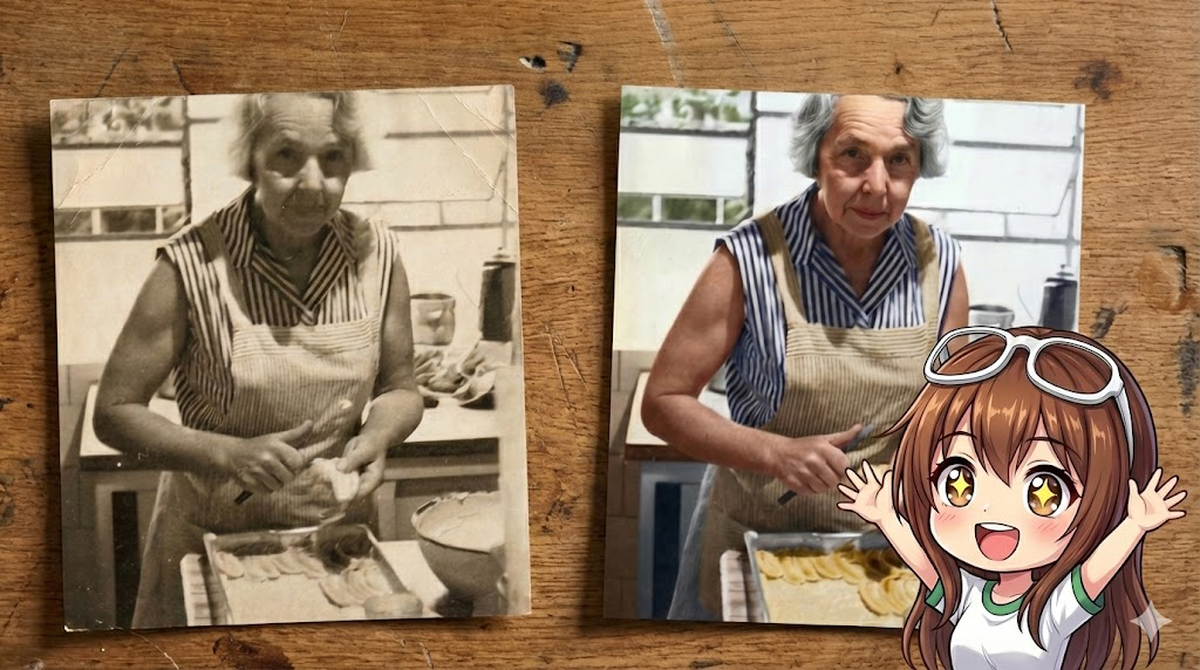
Thanks to the evolution of generative AI, not all is lost and I can finally give these photos a breath of fresh air, not only restoring the damages due to the passage of time, but also colourising and upscaling them to bring them up to modern standards. This is how a small software called “GlowUp” was born.
Below is one example of such restoration:


In this article, I’m going to show how to build GlowUp from scratch using Gemini Nano Banana Pro and Genkit Go.
The building blocks#
I’ve chosen to use Nano Banana Pro (aka. Gemini 3 Pro Image Preview) because it is currently the most advanced image processing model in the Gemini family. While the regular Nano Banana (Gemini 2.5 Flash Image) is also a great model, I find the pro version has better quality outputs and it is also better at following instructions, even if it takes a bit of trial and error.
On the client side, instead of going for a low level SDK like go-genai, I decided to use Genkit as it provides a few quality of life improvements over the lower level code such as:
- Model agnostic: I can test different models if I want, even non-Google or local ones, with a single plugin replacement
- Out of the box Dev UI support for conveniences like testing models, prompts and tracing of model calls
- Flexible architecture: Package it as a CLI application or a web server.
GlowUp is built as a unified binary that can run as a command line tool or a web server. This flexibility allows me to run restorations locally from my terminal or deploy the same code as a cloud service, which could eventually power a nice app that even my father could use to restore his collection of photos.
A first look at Genkit Go#
Genkit is an open-source framework designed to bring production standards to AI development. If you are a Go developer*, think of it as the “standard library” for AI features. (* And if you are not a Go developer, check out the docs as Genkit also supports JS and Python.)
Here is what a minimal “Hello World” looks like in Genkit for Go. Note how we use the googlegenai plugin to initialize the framework.
package main

import (
	"context"
	"fmt"
	"log"
	"net/http"

	"github.com/firebase/genkit/go/ai"
	"github.com/firebase/genkit/go/genkit"
	"github.com/firebase/genkit/go/plugins/googlegenai"
	"github.com/firebase/genkit/go/plugins/server" // Import the server plugin
)

func main() {
	ctx := context.Background()
	// Initialize Genkit with the Google GenAI plugin (Vertex AI)
	g := genkit.Init(ctx, genkit.WithPlugins(&googlegenai.VertexAI{}))

	// Define a simple Flow
	genkit.DefineFlow(g, "hello", func(ctx context.Context, name string) (string, error) {
		// Generate text using a model
		resp, err := genkit.GenerateText(ctx, g,
			ai.WithModelName("vertexai/gemini-2.5-flash"),
			ai.WithPrompt(fmt.Sprintf("Say hello to %s", name)))
		if err != nil {
			return "", err
		}
		return resp, nil
	})

	// Start the flow server manually
	mux := http.NewServeMux()
	// Register all flows defined in 'g'
	for _, flow := range genkit.ListFlows(g) {
		mux.HandleFunc("POST /"+flow.Name(), genkit.Handler(flow))
	}

	if err := server.Start(ctx, ":8080", mux); err != nil {
		log.Fatal(err)
	}
}
This short snippet is doing a lot of heavy lifting. Let’s look at it a bit more carefully.
Plugins#
Adapters that connect your code to providers like Vertex AI, Google AI, or Ollama. For Google models, we should use the googlegenai plugin. It supports both backends:
- Google AI (Studio): Uses an API Key. Best for prototyping and personal projects.
// Use Google AI (API Key)
googlegenai.Init(ctx, &googlegenai.Config{APIKey: "MY_KEY"})- Vertex AI (Google Cloud): Uses Google Cloud IAM authentication. Recommended for production workloads and enterprise features.
// Use Vertex AI (Cloud Auth)
googlegenai.Init(ctx, &googlegenai.VertexAI{ProjectID: "my-project", Location: "us-central1"})
Note: If you are migrating from older versions of Genkit, you might be familiar with separate vertexai and googleai plugins. These have been consolidated into the single googlegenai plugin.
Models#
The actual LLMs (e.g., Gemini, Claude) that generate content. You reference them by name strings like vertexai/gemini-2.5-flash.
	resp, err := genkit.GenerateText(ctx, g,
		ai.WithModel("vertexai/gemini-2.5-flash"),
ai.WithTextPrompt("Tell me a joke"))Prompts#
While nothing prevents you from hardcoding prompts, like in the example above, it is a good practice to keep them in separate files for better maintainability. Genkit uses dotprompt to load external prompts.
A dotprompt file (*.prompt) consists of two main parts: the Frontmatter and the Template.
1. Frontmatter (Configuration)
model: The model identifier (e.g.,vertexai/gemini-2.5-flash).config: Generation parameters liketemperature,topK, or model-specific settings (e.g.,imageConfig).input: A JSON schema defining the variables expected from your Go code.output: For structured outputs.
2. Template (Instructions) The body uses Handlebars syntax to construct the prompt:
- Variables: Placeholders like
{{theme}}are replaced by the values defined in your input schema. - Roles: The
{{role "system"}}and{{role "user"}}helpers structure the conversation, separating system instructions from user queries. - Media: The
{{media url=myImage}}helper injects multimodal data (images, video) directly into the model context.
---
model: vertexai/gemini-2.5-flash
input:
  schema:
    theme: string
---
{{role "system"}}
You are a helpful assistant.

{{role "user"}}
Tell me a joke about {{theme}}.Flows#
In Genkit, a Flow is the fundamental unit of execution that provides:
- Observability: Every flow execution automatically generates traces and metrics (latency, token usage, success rate) viewable in the Genkit Developer UI or Google Cloud Trace.
- Type Safety: Flows are strictly typed with input and output schemas, preventing runtime errors when chaining multiple AI operations.
- Deployability: Flows are strictly separated from their serving logic. To deploy them, wrap them with
genkit.Handler, which converts a flow into a standardhttp.Handler. This makes it possible to serve them using the standard library or any Go web framework:
    // Define a flow
    myFlow := genkit.DefineFlow(g, "myFlow", func(ctx context.Context, input string) (string, error) {
        return "Processed: " + input, nil
    })

    // Expose it as an HTTP handler
    http.HandleFunc("/myFlow", genkit.Handler(myFlow))
Nano Banana Pro#
The engine behind our restoration is Gemini 3 Pro Image, affectionately (and internally) known as “Nano Banana Pro”.
It represents a significant leap over previous generations (and even the current “Flash” models). While Gemini 2.5 Flash is incredibly fast and capable of basic image generation (gemini-2.5-flash-image), Nano Banana Pro (gemini-3-pro-image-preview) is built for deep multimodal reasoning.
It doesn’t just “see” pixels; it understands semantic context. It can differentiate between a “scratch on the paper” and a “scar on a face”. It knows that a 1950s kitchen likely has linoleum floors, not modern hardwood.
Key differences#
- Flash (gemini-2.5-flash-image): Optimized for speed and cost. Great for thumbnails or simple illustrations. Max resolution 1024x1024.
- Pro (gemini-3-pro-image-preview): Optimized for fidelity and reasoning. Supports native 4K resolution generation (up to 4096px), which is non-negotiable for photo restoration.
The model also accepts imageConfig parameters to fine-tune the output:
imageSize: “4K” or “2K”.aspectRatio: “16:9”, “4:3”, “1:1”, etc.
One important detail to note is that this model always returns interleaved responses containing both text and images. Unlike other generation models, image-only output is not supported. This is why our extraction logic (which we’ll see below) needs to be flexible enough to find the image data within the multi-part response message.
Note: At the time of writing, this model is only available in the global location on Vertex AI. You must configure your Vertex AI client accordingly.
Connecting the parts#
Now, let’s look at how GlowUp connects these pieces. We use a prompt file to define the restoration expert persona and a flow to handle the image processing.
The prompt#
We use a .prompt file to define our model configuration and instructions. Notice how we enforce the 4K resolution here, keeping our code clean.
---
model: vertexai/gemini-3-pro-image-preview
config:
  imageConfig:
    imageSize: "4K"
input:
  schema:
    url: string
    contentType: string
---

{{role "system"}}
You are GlowUp, a professional-grade photo restorer.
Your goal is to provide a "surgical" restoration service that transforms vintage, damaged, or monochrome photographs into high-fidelity 4K colourised versions.

RULES:
1. **Grounding**: You are strictly grounded in the original source pixels. Do NOT add new objects (trees, people, buildings, etc.) that are not present in the source. Additionally, do NOT remove any elements from the source, unless they are clearly defects that do not belong in the original scene.
2. **Fidelity**: Preserve the original facial expressions and identity of subjects. Do NOT "beautify" or alter features in a way that changes the person's identity.
3. **Background**: Preserve background fidelity. Overexposed light sources (like windows) must remain as light sources. Do not "fill in" missing details with invented scenery.
4. **Colourisation**: If the image is monochrome, colourize it realistically, respecting historical accuracy where possible.
5. **Upscaling**: Output a high-fidelity image.

{{role "user"}}
Restore this photo.
Image: {{media url=url contentType=contentType}}
The flow#
The Go code is remarkably focused. In this unified architecture, the flow definition loads the prompt and passes the multi-modal input to the model:
// main.go (Flow Definition)
type Input struct {
	URL         string `json:"url,omitempty"`
	ContentType string `json:"contentType,omitempty"`
}

func defineGlowUpFlow(g *genkit.Genkit) *core.Flow[Input, string, struct{}] {
	return genkit.DefineFlow(g, "glowUp", func(ctx context.Context, input Input) (string, error) {
		prompt := genkit.LookupPrompt(g, "glowup")
		if prompt == nil {
			return "", errors.New("prompt 'glowup' not found")
		}

		resp, err := prompt.Execute(ctx, ai.WithInput(input))
		if err != nil {
			return "", fmt.Errorf("generation failed: %w", err)
		}

		return resp.Media(), nil
	})
}
To support local files natively, we use a fileToDataURI helper function. This function reads a local file, detects its MIME type using http.DetectContentType, and encodes it into a standard Base64 Data URI that the Gemini API expects. This is critical for maintaining fidelity across different scan formats without hardcoding extensions.
func fileToDataURI(path string) (uri, contentType string, err error) {
	data, err := os.ReadFile(path)
	if err != nil {
		return "", "", err
	}
	contentType = http.DetectContentType(data)
	encoded := base64.StdEncoding.EncodeToString(data)
	uri = fmt.Sprintf("data:%s;base64,%s", contentType, encoded)
	return uri, contentType, nil
}
Because Nano Banana Pro is smart enough to infer the aspect ratio from the input image, we don’t need complex logic to calculate and inject it. We provide the pixels and let the model do its job.
How to run it#
If you have a collection of fading memories that serve as fragile anchors to your family history, I encourage you to try this. It’s a way to reclaim those moments from time and give them the clarity they deserve.
Clone the Repository:
git clone https://github.com/danicat/glowup
cd glowup
Set Up Credentials (Remember:
globallocation!):export GOOGLE_CLOUD_PROJECT=your-project-id export GOOGLE_CLOUD_LOCATION=globalRun the Restoration:
go run main.go restore --file old_photo.jpg
Known issues and limitations#
While the restoration process works, it is not without its quirks. Here are a couple of issues I found:
- Instruction adherence: Even though Nano Banana Pro is a vanguard model, it still occasionally misses an instruction. You might find it requires a few attempts before you get the desired result. I haven’t spent much time fine-tuning the prompt, so there are likely opportunities for further optimization there.
- Models in the Dev UI: There is a bug in the
googlegenaiplugin that causes it to not automatically populate the available models in the Dev UI. You can still reference models by name to “dynamically” register them, but it adds a bit of friction to the experimentation process (the JS version performs this well). I’ve opened a bug and there is already a fix in place, but if you are using an older version it is something to be aware of.
Conclusions#
Building GlowUp was a satisfying experiment in using AI to reconnect with my past at an emotional level. I know there is a lot of doom and gloom out there, but this is the kind of application that makes me excited about AI in the first place.
The picture I used in this article is far from being the most dramatic use of this tech, but I am already working on part two of this article where I am taking it to the next level to help me rebuild one of my favourite card games from my childhood.
The bottom line is that the potential is limitless. I hope this inspires you to look at your own niche problems — technical or personal — and see what you can build to solve them.
Do you want to try building your own? I’ve put together a step-by-step codelab where you can build this exact photo restoration app from scratch.
For more details, you can also check out the Genkit documentation and the GlowUp source code.
Happy coding!
Dani =^.^=